Showing posts with label drivers. Show all posts

Wednesday, January 20, 2010

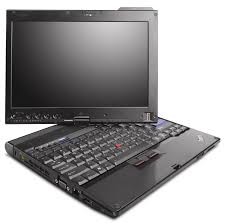
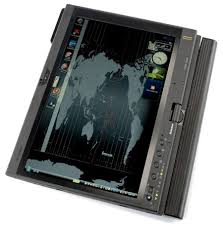
Using beta drivers on my Lenovo ThinkPad X200 Tablet PC

After performing a clean installation of Windows 7 on my Lenovo ThinkPad X200 tablet PC, I noticed that the buttons on the screen bezel were not working. I have a few buttons that open menus, rotate screens, etc. They simply weren't doing anything.

So, I did some searching on Google and I found that Lenovo has a website where they list beta drivers for Windows 7. I installed the beta driver for the "Tablet Button Driver X200 Tablet" and my buttons started to work again!

If you're running Windows 7 on a Lenovo ThinkPad and you're experiencing any strange problems, you may want to see if Lenovo has a beta driver that could solve your problem. To view those Lenovo beta drivers, click here:
http://www-307.ibm.com/pc/support/site.wss/WIN7-BETA.html

Tuesday, January 19, 2010

Re-installing Windows 7 on my Thinkpad X200 Tablet

I recently got a new hard drive so I'm now reinstalling Windows 7 on my Lenovo ThinkPad X200 tablet PC. I could have cloned my old hard drive, but I generally prefer the clean installation method. It gives me a chance to do a bit of housekeeping.

Thanks to a fast Internet connection, I was up and running in a very short amount of time. I used my Windows 7 DVD to install the OS, then I used a combination of the Lenovo System Update and the Microsoft Windows Update to install all the necessary drivers and system software.

If you're still running XP or Vista on a tablet PC, then you really should try Windows 7. I've found that this OS offers some great features for the tablet form factor. If you really need XP or Vista, then simply create a second partition and test drive Windows 7 on that second partition. If you're running out of space on your hard drive, then do what I did: upgrade to a larger HD.

Thursday, October 29, 2009

Windows 7 drivers for theThinkpad X200 Tablet PC


I now have all the proper drivers for my Lenovo Thinkpad X200 tablet PC running Windows 7. My Device Manager show no errors. My fingerprint scanner works perfectly. The SD reader works. The built-in WWAN also works. This computer originally came with Windows Vista, but I've been running Windows 7 for the past few months and things had been fine. I find that Windows 7 is much faster compared to Vista on this particular machine.

I'm disappointed that ThinkVantage System Update 4.0 didn't load all the necessary drivers for this machine. Well, maybe the next version of System Update will get fixed. In the meanwhile, "thank you" Lenovo for releasing all the drivers for Windows 7. Now, let's see if I can get the internal GPS to work.

Wednesday, October 28, 2009

Installing Windows 7 on my Thinkpad X200 Tablet PC


I don't think my Lenovo Thinkpad X200 Tablet PC is ready for the RTM version of Windows 7. I'm running ThinkVantage System Update 4.0 and it's not identifying all the proper drivers that I need. Specifically, I'm still lacking drivers for:
  • Fingerprint scanner (drivers for Vista did not work)
  • WWAN module (drivers for Vista seemed to work here)
  • Serial port (probably the SD slot, but not entirely sure yet)
I'll play around to see what else I can find, but I was really hoping that ThinkVantage System Update 4.0 was going to identify all the drivers and utilities I need to run Windows 7 on my Thinkpad.

For now, I've put my old hard drive back in my Thinkpad. I'm typing this while running Windows 7 RC (build 7100). I'm hoping that by the weekend, I'll be using the RTM version.

Tuesday, July 7, 2009

Windows 7: upgrade over Vista or clean install?


I realize that my copy of Windows 7 is only the Release Candidate (RC) version, but I can't imagine that the upgrading feature will improve that much in the final version of Windows 7. If you've been following my blogs, you know that I have a Lenovo Thinkpad X200 Tablet PC. I also have 2 different hard drives, so I decided to do a little experiment. On the first HD, I did a clean install of Windows 7. On the second HD, I loaded Vista, and then upgraded to Windows 7. How can I afford to do all this and maintain my productivity? I can do this at home because I have a few other computers that I can use while I'm running my little experiments.

If you've done many operating system upgrades, you know that you always get better system performance (speed, efficiency, stability, etc.) when you do a clean install. However, if you do a clean install, you have to reinstall all your applications, customize your settings, etc. It can be a real hassle. At the end of the day, you're always better if you do a clean install. An upgrade can cause its share of problems. According to Microsoft, Windows 7 is only considered a "minor upgrade" from Windows Vista. So, you'd think that an upgrade should be relatively straight-forward, no? Perhaps that's the case if you hardly have any applications installed. In my case, I have quite a few and here's what I found:
  • Slower overall system performance on the "upgrade" vs. the clean install. Not a surprise.
  • Slower boot-up times on the the "upgrade" vs. the clean install. It still boots faster than Vista, but it's about 20 seconds slower compared to the clean install.
  • Some funny things happening with the fingerprint reader and touch screen calibration. More to come as I experiment. I realize that many of the drivers may not be ready for this machine. Plus, some of the ThinkVantage utilities are probably not compatible with Win7 at this point.
So, one again: perform a clean install if you can afford to spend the time. Alternatively, you can try the upgrade from Vista and experiment for a few weeks. If you're pleased with the results, you may not know what you're missing. Since ignorance is bliss, don't fix something that's not broken.


Saturday, June 13, 2009

Running Windows 7 on my Thinkpad X200 Tablet PC


I've been running Windows 7 RC (32 bit) on my Lenovo Thinkpad X200 Tablet PC for a while now. I did a clean install on a blank hard drive. Then, I ran ThinkVantage System Update 3.14 to download drivers and it loaded drivers that were marked as XP/Vista. Currently, most of the drivers seem to work with Windows 7, but there are a few exceptions.
  • Intel Turbo Memory seems to be working.
  • Bluetooth and Wi-Fi are working.
  • The built-in AT&T WWAN is working.
  • Built-in camera is working.
  • Multi-touch screen working (active digitizer plus passive touch-screen).
  • Fingerprint reader is working.
  • ThinkVantage Active Protection is working.
  • Modem - not tested. Who still uses a phone modem these days?
Allow me to continue my testing and I will post regular updates.

Wednesday, May 6, 2009

What Do You Think of Windows 7 So Far?


I have Windows 7 running on 4 different computers. Two of them are older, desktops, one is a very slow ultra-mobile PC, and one is a modern PC. I have to say that I'm very impressed by the way that Windows 7 performs. My only question is: will we see more drivers for older hardware?