I'm @DrJosephKim, editor of Mobile Health Computing. For the past few weeks, I have had the chance to test and review the Lenovo ThinkPad Tablet 2. The first version of the ThinkPad Tablet was a heavy, bulky Android tablet that had business features that were not found on most Android tablets including: a full-size USB port, a full-size SD card slot, a mini-HDMI port, and a built-in holder for an N-Trig digitizer pen. That's what made the first ThinkPad Tablet heavy and bulky.
Well, Lenovo has come out with a much thinner and lighter device with the ThinkPad Tablet 2. Plus, this device runs Windows 8 Pro and has the standard Intel Atom dual-core processor, 2 GB of RAM, and a 64 GB SSD for storage. The Intel dual-core Atom processor gives it up to 10 hours of battery life, so in real-world working situations where you're browsing the web and using Wi-Fi, you can easily expect approximately 9 hrs of battery life depending on your brightness settings. The battery is sealed inside, so you won't be replacing it on the field.
Here is a short little video I made highlighting the Lenovo ThinkPad Tablet 2:
There are a few features that distinguish this tablet PC from some of the other Windows 8 tablet PCs:
Weight:
The ThinkPad Tablet 2 is probably one of the lightest Windows 8 tablets on the market weighing only 1.25 lbs. In comparison, the iPad 4 weighs 1.44 lbs. At 9.8 mm thick, the ThinkPad Tablet 2 is almost as thin as the iPad 4 which is 9.4 mm thick.
Built-in pen holder:
I really appreciate the fact that the ThinkPad Tablet 2 features a built-in slot for the Wacom-based digitizer pen. The pen is useful for precise writing, tapping, or drawing. You can hover the pen over the screen and the mouse will follow your pen tip. Health care professionals will appreciate how they can use the pen when signing notes, scribbling, or drawing around key images. The precision of an active stylus compared to a capacitive stylus is writing with a thick paint brush vs. a ballpoint pen.
Micro-USB charging:
The ThinkPad Tablet 2 uses a proprietary charger but it can also charge via micro-USB, but the battery charges only when the device is off or in sleep mode. Let me repeat that: the battery will only charge when the device is either off or in sleep mode. So, the micro-USB charging is a nice option, but it's not too practical if you need to charge while you're working.
Ports:
The Tablet PC has a covered full-size USB port and a microSD card slot. The bottom of the tablet has the proprietary docking/charging port along with a micro-HDMI port. If you get the WWAN option, then you can enter a SIM card as well. For the most part, these ports are all fairly standard features found on most Windows 8 tablet PCs.
Bluetooth keyboard option:
Unlike many other Windows 8 tablets, the ThinkPad Tablet 2 has an optional Bluetooth keyboard that is designed specifically for this tablet. The keyboard has an optical pointer stick which resembles the traditional ThinkPad TrackPoint pointer stick, but it is designed as an optical mouse. They keyboard is a bit heavy and bulky compared to most Bluetooth keyboards, but it provides an excellent typing experience and the built-in mouse pointer is an essential feature (in my opinion).
So in summary, the Lenovo ThinkPad Tablet 2 is a great Windows 8 tablet PC that uses a low-power Intel Atom dual-core processor. In terms of general usability, it performs very well and does a very nice job balancing all-day battery life with performance. If you need something more powerful, you'll need to get a PC powered by an Intel Core i3, i5, or i7 processor and you'll be sacrificing battery life.

Showing posts with label keyboard. Show all posts
Showing posts with label keyboard. Show all posts
Monday, April 15, 2013


Friday, March 22, 2013
I am reviewing the Lenovo ThinkPad Tablet 2
 Over the next few weeks, I'll be reviewing the Lenovo ThinkPad Tablet 2. I had a chance to play with one at the 2013 HIMSS conference and now I have a review unit from Lenovo that I can test for the next few weeks.
The ThinkPad Tablet 2 is a Windows 8 tablet PC that also comes with an optional Bluetooth keyboard. Unlike other Bluetooth keyboards, this one also includes an optical mouse pointer called an optical trackpoint. You won't find anything like it on any other keyboard. It's not like the traditional ThinkPad trackpoint because this one doesn't move. It's small and it's optical. I'll explain more about my experiences with that later.
Have you had a chance to take Windows 8 for a test drive? The newer tablet PCs powered by Intel Atom processors are much faster compared to first-generation Atom devices. Also, the super long-battery life of these devices is a welcome feature. The ThinkPad Tablet 2 is rated for 10 hours of battery life.
Stay tuned as I jot down some observations and then I will provide a comprehensive review over the next couple of weeks.
Wednesday, January 18, 2012
World's First Self-Sanitizing Keyboard
Vioguard Announces Addition of World's First Self-Sanitizing Keyboard to HP Healthcare Solutions Portfolio
KIRKLAND, Wash., Jan 18, 2012 (BUSINESS WIRE) -- Vioguard(TM) LLC ( www.vioguard.com ) today announced it has signed a sales and distribution agreement with HP to market and sell the Vioguard self-sanitizing computer keyboard. The product was recently cleared by the U.S. Food and Drug Administration as the first computer keyboard to use the germicidal properties of ultraviolet light (UV-C) to destroy harmful viruses and bacteria.
As one of HP's top healthcare solution providers, Vioguard joins a trusted program of end-to-end healthcare IT systems for medical facilities worldwide.
KIRKLAND, Wash., Jan 18, 2012 (BUSINESS WIRE) -- Vioguard(TM) LLC ( www.vioguard.com ) today announced it has signed a sales and distribution agreement with HP to market and sell the Vioguard self-sanitizing computer keyboard. The product was recently cleared by the U.S. Food and Drug Administration as the first computer keyboard to use the germicidal properties of ultraviolet light (UV-C) to destroy harmful viruses and bacteria.
As one of HP's top healthcare solution providers, Vioguard joins a trusted program of end-to-end healthcare IT systems for medical facilities worldwide.
Thursday, August 25, 2011
Lenovo ThinkPad slate tablet (Android OS) is now on sale
 The Lenovo ThinkPad tablet is now on sale. Don't get this one confused with the ThinkPad X220 tablets that are convertible laptops.
The ThinkPad tablet runs Android and it's a slate. However, you're limited to the Wi-Fi versions for now. The tablets that include 3G radios will be coming in October. Even though theThinkPad tablets run Google's Android OS, this tablet isn't just like all the other Android tablets out there. This one is really built for business users who require enterprise-level services. Sounds like it could be a good fit for the health care industry. This photo is from GottaBeMobile.
The ThinkPad tablet includes a digitzer pen and has a built-in pen storage compartment in the tablet. It also includes multiple connectivity ports: Native USB 2.0 and micro-USB ports, full-size SD card slot and mini-HDMI output. You won't find these features on most Android tablets (or the Apple iPad for that matter).
Lenovo has made a nice tablet here, but I wonder why it won't be available with a 4G antenna this fall. After all, the Samsung Galaxy Tab 10.1 and the Motorola Xoom are available with 4G.
Wednesday, July 13, 2011
ZAGGfolio iPad 2 Folio


Are you looking for a keyboard/case combo for your iPad 2? The ZAGGfolio iPad 2 Folio could be what you need. I've used a number of different ZAGG products in the past and this thin multi-function iPad folio case looks very impressive. I currently use the ZAGGmate with keyboard for my original iPad.
The removeable iPad keyboard works in combination with the built-in stand to give you the most flexibility of use.
You can learn more about the ZAGGfolio iPad 2 Folio here.
Friday, March 25, 2011
Keyboard "noise suppression" on new ThinkPads

The 2011 Lenovo ThinkPads are coming with keyboards that have "noise suppression."
Keyboard noise suppression minimizes key clicks from being heard...That's what I need on my ThinkPad. The other feature I really need is a keyboard light for my ThinkPad. It sure would be nice if Lenovo would include a keyboard light on their X220 tablet PC.
Monday, March 14, 2011
Reviewing the ZAGGmate case and keyboard for the Apple iPad
Over the past few weeks, I've had the opportunity to review the ZAGGmate case and keyboard for the Apple iPad. I want to thank the folks at ZAGG for sending me a review unit so that I can test it with my iPad.

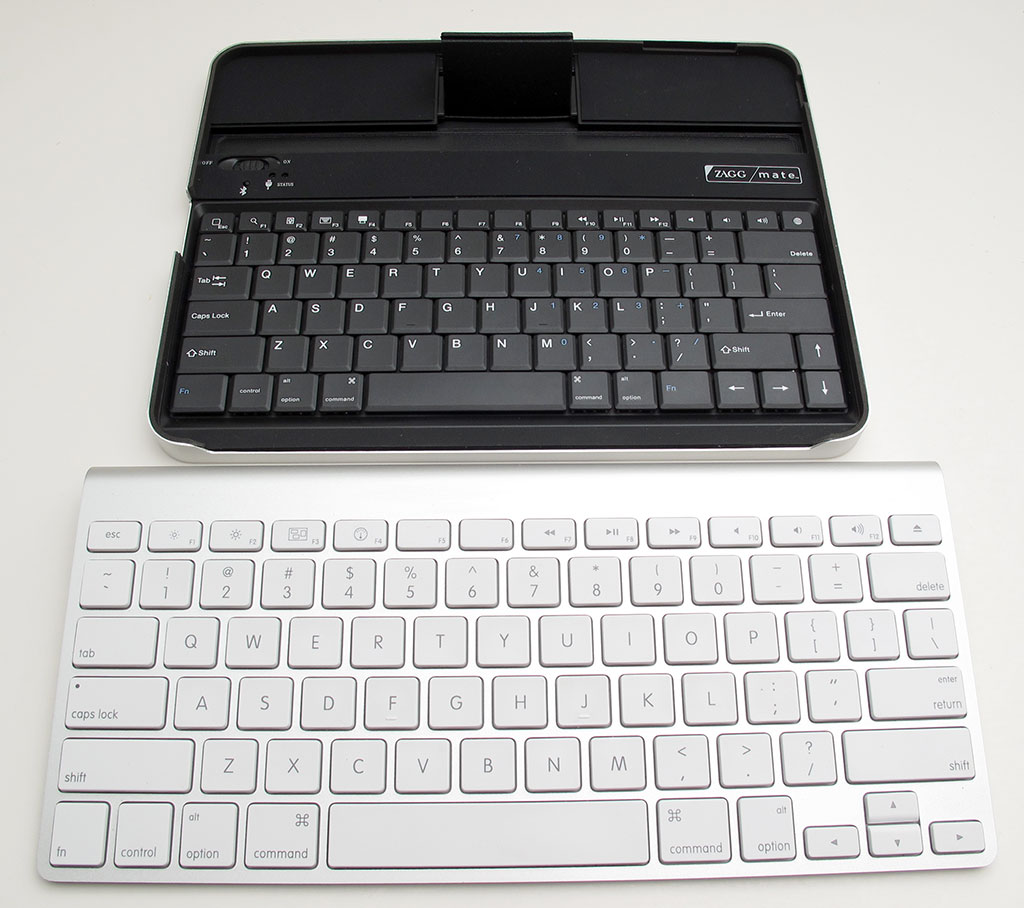
First, you'll see how the keyboard buttons compare to the keys on my ThinkPad laptop. The keys on the ZAGGmate are very responsive and they're easy to press, but keep in mind that they're smaller than the buttons that you'll find on a regular laptop. Compared to the majority of the iPad keyboard cases that are currently out there on the market, this one is definitely one of the best ones that blends functionality with portability.
Here's another photo showing the ZAGGmate next to an Apple keyboard (photo from the-gadgeteer.com):
 The ZAGGmate holds the iPad at a particular viewing angle. I wish it offered more options for viewing angles, but then the iPad would probably tip over.
The viewing angle works fine as long as you have the ZAGGmate on a desk or table. I find that if I place the ZAGGmate on my lap, the viewing angle isn't optimal for me, but it still works.
ZAGGmate iPad Case w/ keyboard Features
I really like how the ZAGGmate doubles as a durable case for the iPad. It will mainly protect the iPad screen and the edges. Make sure to get a cover for the back if you want to avoid scratches on the back of your iPad case.

Now that the iPad 2 is out, you'll probably want to get the ZAGGmate for the iPad 2. I'm still not sure if I'm going to upgrade to an iPad 2 or wait for the iPad 3. My current iPad works just fine for most of my needs, so I'll probably just hang onto my current one and wait.
Get the ZAGGmate here. (You can currently pre-order the ZAGGmate for iPad 2)
First, you'll see how the keyboard buttons compare to the keys on my ThinkPad laptop. The keys on the ZAGGmate are very responsive and they're easy to press, but keep in mind that they're smaller than the buttons that you'll find on a regular laptop. Compared to the majority of the iPad keyboard cases that are currently out there on the market, this one is definitely one of the best ones that blends functionality with portability.
Here's another photo showing the ZAGGmate next to an Apple keyboard (photo from the-gadgeteer.com):
The viewing angle works fine as long as you have the ZAGGmate on a desk or table. I find that if I place the ZAGGmate on my lap, the viewing angle isn't optimal for me, but it still works.
ZAGGmate iPad Case w/ keyboard Features
- Embedded wireless Bluetooth physical keyboard
- Special function keys for music control, volume control, slideshow, home, search, etc.
- Aircraft-grade aluminum with a bead-blasted, anodized finish that matches the iPad
- Military grade high-density padding for superior drop protection
I really like how the ZAGGmate doubles as a durable case for the iPad. It will mainly protect the iPad screen and the edges. Make sure to get a cover for the back if you want to avoid scratches on the back of your iPad case.
Now that the iPad 2 is out, you'll probably want to get the ZAGGmate for the iPad 2. I'm still not sure if I'm going to upgrade to an iPad 2 or wait for the iPad 3. My current iPad works just fine for most of my needs, so I'll probably just hang onto my current one and wait.
Get the ZAGGmate here. (You can currently pre-order the ZAGGmate for iPad 2)
Thursday, February 17, 2011
I'm testing the ZAGGmate w/keyboard
 I'm testing the ZAGGmate w/keyboard with my Apple iPad. I want to thank the folks at ZAGG for sending me one so that I can test and review this device. So, stay tuned over the next few weeks as I share my perspectives on this innovative case + keyboard. Here's a brief description of the ZAGGmate / keyboard:
ZAGGmate iPad Case Features
* Aircraft-grade aluminum with a bead-blasted, anodized finish that matches the iPad
* Military grade high-density padding for superior drop protection
* Innovative hinge provides ten angles for viewing and typing in both portrait and landscape mode (non-keyboard version only)
* Stylish, thin and lightweight. Half as thin as most folios for the iPad
* Large, flat base allows for use on a soft or uneven surface such as a lap or on a bed
* Only adds about ⅛" to the iPad
Monday, January 31, 2011
Working on the plane with my iPad

When I travel in the future, I may end up leaving my laptop at home. I can access my Windows 7 PC remotely using LogMeIn Ignition and I can run a virtual machine of my Windows 7 computer. As I get more proficient at "pinch-to-zoom" and touch tapping, my efficiency on the iPad is definitely improving. Next: I will connect a Bluetooth mouse to my iPad so that I can replicate a true workstation experience.
Tuesday, January 25, 2011
Stowaway Bluetooth keyboard works with the iPad
I was pleasantly surprised when I discovered that my old Stowaway keyboard (which was originally made by iGo) worked on my Apple iPad. The keyboard is really small, it works on 2 AAA batteries, and the keys are very easy to press. Plus, the keyboard folds up and stows away very nicely (hence, the name). Unfortunately, this little Bluetooth keyboard was discontinued a while back. I should have purchased an extra one when it was on clearance!
As my friend pointed out, an external keyboard makes all the difference in the world if you're doing a lot of typing. The iPad is a great travel device and I look forward to using this on the plane later today. Now, I have arrow keys!
As my friend pointed out, an external keyboard makes all the difference in the world if you're doing a lot of typing. The iPad is a great travel device and I look forward to using this on the plane later today. Now, I have arrow keys!
Monday, January 24, 2011
5 tips and tricks for typing on an iPad

1. I can type more accurately if I use 4 fingers on each hand instead of all five. Depending on the size of your hands, you may notice the same thing. If you have smaller fingers, then you may type just fine using all five fingers (ok, the thumb isn't a finger). I mainly type using my index, middle, and ring fingers. I also use my thumb, but I do not regularly use my pinkie.
2. Do you know how to highlight sections of a paragraph? First, double tap at the beginning of the section. Then, hold that second tap and drag and select the section you would like to highlight. When you let go, you will have the option to copy or cut that section.
3. Get used to the auto capitalization of the first letter of sentence. If you do not like that feature, you can disable that in the Settings under General-> Keyboard. Speaking of capitalization: the screen is multi-touch, so you can hold the Shift key with one finger and press several other keys using your other finger if you need a series of CAPS. You can also double tap the Shift key to get CAPS LOCK.
4. Are you looking for the arrow keys? Up, Down, Left, Right? You won't find them on the keyboard. I hope that Apple adds the arrow keys in future versions of iOS. Until we get arrow keys, you need to get used to tapping and holding until a magnifying view appears. Keep your fingers on the screen until you have moved the cursor where you need it to go. If that ends up being a frustrating experience, then pinch to zoom and make the letters bigger so that you can place the cursor at the right position.
5. Finally, keep your fingernails short. The iPad uses a capacitive touch screen, so passive objects like fingernails will not register on the device. Plus, long fingernails will make typing more difficult on this type of gadget.
Thursday, December 9, 2010
ZAGGmate with Keyboard for the Apple iPad
This could be the perfect iPad case + keyboard combination out there: The ZAGGmate with Keyboard

ZAGGmate Features
* Aircraft-grade aluminum with a bead-blasted, anodized finish that matches the iPad
* Military grade high-density padding for superior drop protection
* Innovative hinge provides ten angles for viewing and typing in both portrait and landscape mode
* Stylish, thin and lightweight. Half as thin as most folios for the iPad
* Large, flat base allows for use on a soft or uneven surface such as a lap or on a bed
* Only adds about 1/8 of an inch to the iPad
ZAGGmate w/ keyboard Features
* Embedded wireless Bluetooth physical keyboard
* Special function keys for music control, volume control, slideshow, home, search, etc.
* Only adds about 1/4 of an inch to the iPad
ZAGGmate Features
* Aircraft-grade aluminum with a bead-blasted, anodized finish that matches the iPad
* Military grade high-density padding for superior drop protection
* Innovative hinge provides ten angles for viewing and typing in both portrait and landscape mode
* Stylish, thin and lightweight. Half as thin as most folios for the iPad
* Large, flat base allows for use on a soft or uneven surface such as a lap or on a bed
* Only adds about 1/8 of an inch to the iPad
ZAGGmate w/ keyboard Features
* Embedded wireless Bluetooth physical keyboard
* Special function keys for music control, volume control, slideshow, home, search, etc.
* Only adds about 1/4 of an inch to the iPad
Wednesday, October 13, 2010
"Finger Drift" when using the on-screen keyboard on the Apple iPad
After I wrote about using the on-screen keyboard on the Apple iPad, here's a great comment I received from a physician who describes the challenges of "finger drift" when he's typing on his iPad:
The biggest challenge to typing on an onscreen keyboard is what I'd call "finger drift." on a real keyboard you can feel the edge of the keys with your fingertips and you know when your fingers are hitting the edge of a key or that your fingers are getting a little out of alignment with the keyboard below. Your fingers sort of automatically readjust back to alignment with the keyboard. It's one of the reasons that most physical keyboards have that little raised dash on the bottom edge of the J and F keys.
This sort of feedback doesn't exist on a smooth piece of glass and having it vibrate on keypress (haptic feedback) adds nothing to this. Without it, you end up typing a "p" when you intended an "o" and so forth.
The biggest challenge to typing on an onscreen keyboard is what I'd call "finger drift." on a real keyboard you can feel the edge of the keys with your fingertips and you know when your fingers are hitting the edge of a key or that your fingers are getting a little out of alignment with the keyboard below. Your fingers sort of automatically readjust back to alignment with the keyboard. It's one of the reasons that most physical keyboards have that little raised dash on the bottom edge of the J and F keys.
This sort of feedback doesn't exist on a smooth piece of glass and having it vibrate on keypress (haptic feedback) adds nothing to this. Without it, you end up typing a "p" when you intended an "o" and so forth.
Tuesday, October 12, 2010
Typing on a "virtual" keyboard

Have you tried placing the iPad on a flat (or angled) surface so that you can type using the on-screen keyboard? After you get used to the fact that there are no physical buttons, you'll find that typing is actually quite easy (even if your fingers aren't tiny). If you haven't tried it, go by an Apple store and play with the iPad. Try typing on its screen and see what you think. Do you think you could get used to that?
Is this the future for all mobile computing devices? Will the days of physical QWERTY keyboards be a thing of the past as smartphones, slates, and other mobile devices move away from physical keyboards? With an on-screen keyboard, you don't have to worry about moving parts or small keys that may break or fall off. You also don't need to worry about annoying clicking sounds that may bother the person sitting next to you if you're an aggressive (and fast) typist.
Monday, October 4, 2010
Waterproof, spill-proof keyboards

Other waterproof keyboards are flexible and they are somewhat difficult to use. Those that are flexible feel more like buttons on a calculator instead of a keyboard.
You can also find keyboards that have a backlight so that you can use them in low-light situations. These are perfect for radiology suites and call rooms.
Wednesday, August 25, 2010
The best iPad case?

According to SlashGear, this keyboard is available for sale in the UK. GearZap sell it for £59.95 ($92) though it’s currently listed as out of stock.
Wednesday, April 7, 2010
viliv S10 Blade

Of course, you could also get the ASUS Eee PC T101MT. This little convertible tablet PC/netbook is another nice option.
Thursday, March 11, 2010
Lenovo ThinkPad X201 vs. X200 Tablet PC
 I currently use a Lenovo ThinkPad X200 Tablet PC. It's not old, but it's also not the new ThinkPad X201 Tablet. What are the differences between the X200 and the newer X201 Tablet PCs?
First, the new X201 uses the Intel® Core™ i7 processor while the older X200 uses the Add up to Intel® Core™2 Duo processor. The i7 is currently the "best" Intel processor on the market.
The new X201 tablet also features a multitouch touchpad (in addition to the TrackPoint pointing device).
I'm waiting for Lenovo to install a keyboard light on their tablet PCs. The include an LED light for their laptops, so why don't they add the LED light feature for their convertible tablets? That's on the top of my wish list right now.
Wednesday, March 3, 2010
HP EliteBook 2740p tablet PC (coming soon)
 If I had to buy a new laptop, I'd really like to get one that has illuminated keys since I do a lot of typing at night (in the dark). My wife has a MacBook Pro, so her keyboard lights up. My current Lenovo Thinkpad X200 tablet lacks any type of built-in keyboard illumination.
 A few months ago, I had the chance to review the HP EliteBook 2730p tablet PC that also has a built-in LED light at the top of the screen. This light pops out and shines down on the keyboard. It's a great feature if you're typing on the plane or in a dark setting (such as a radiology suite).
HP is preparing to release the EliteBook 2740p and the biggest new feature here is the option for a multi-touch screen. When my ThinkPad dies, I may need to switch to the EliteBook since I'm finding that keyboard illumination is a key feature that I'm not willing to bypass if I can find it in another machine.
Tuesday, February 9, 2010
Fully Washable Medical Grade Keyboards by HP (#HIMSS10)
 At HIMSS10 (Healthcare Information and Management Systems Society), HP will be demonstrating some fully washable medical grade keyboards. I'm looking forward to seeing that! HP will be at Booth # 7761
These keyboards are made by Unotron. Here's an interesting fact:
A study conducted by University of Arizona last year found the average office desktop was home to 400 times more bacteria than the average toilet seat.So, does that mean that toilet seats are generally kept quite clean or that keyboards are really that filthy? I'm getting really excited to walk through the exhibit section of HIMSS because I think we're going to see some truly innovative products there.
Subscribe to:
Posts (Atom)